
Organisation · · 5 min read
Inbox zero in 2026: what still works, what no longer does
Where inbox zero comes from, what is still useful (batch processing, clear decisions, archiving), what no longer is, and a method for inboxes full of client requests.
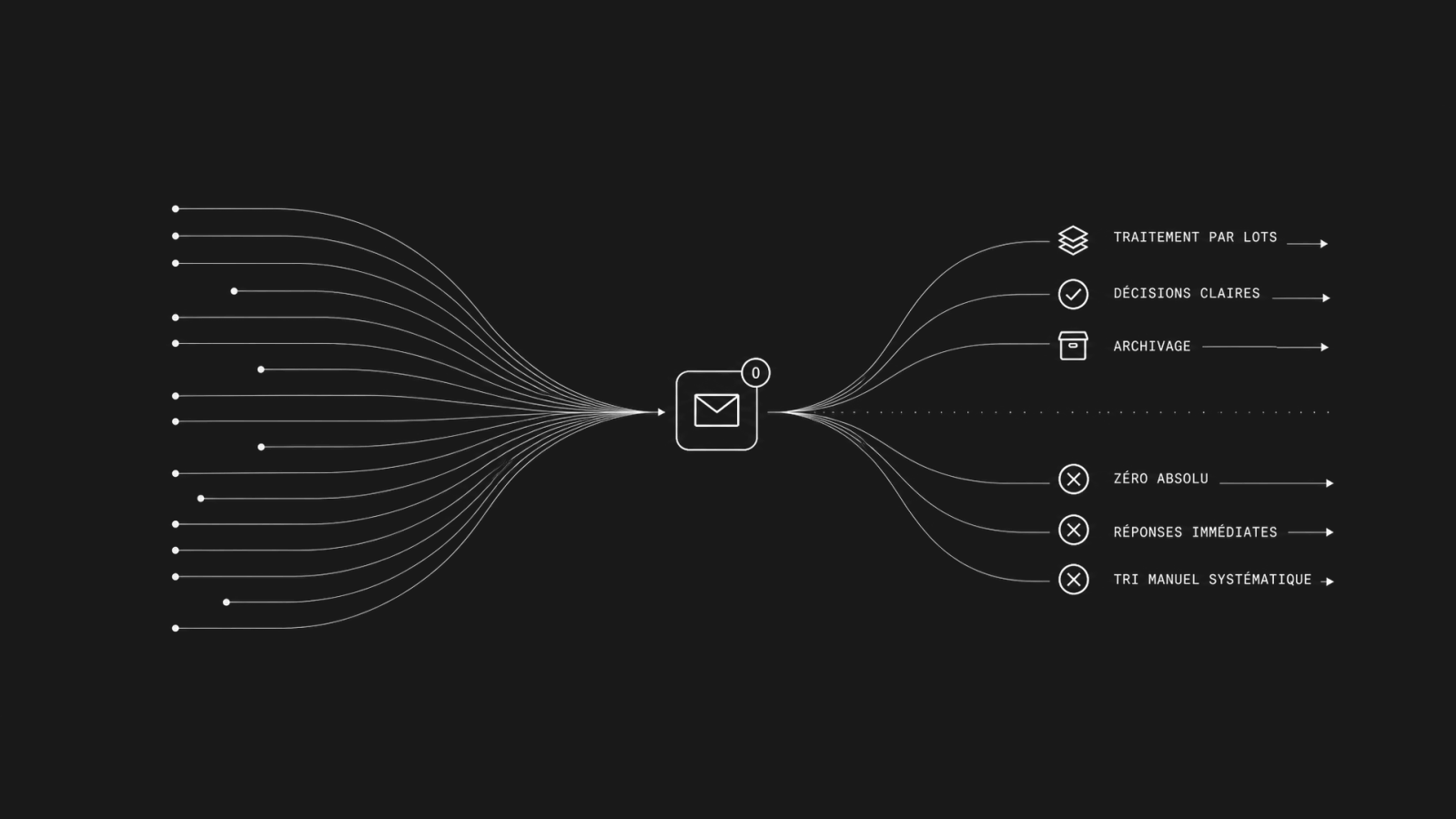
“Inbox zero” is one of those phrases everyone knows and few people really apply. For some, it is a discipline that changed how they work. For others, one more source of guilt. The method deserves sorting: part of it is still very useful, another part has aged badly.
Where the phrase comes from
The phrase is associated with Merlin Mann, creator of the 43 Folders website. On 23 July 2007, he gave a talk at Google called “Inbox Zero”, published on the Google TechTalks YouTube channel. According to the summary that accompanies the video, he covers the Getting Things Done method, the importance of bringing your inbox down to zero and strategies for dealing with a high volume of email.
So from the start, the summary links zero to a practical question: how to deal with a lot of email. That is the point most often forgotten.
The zero misunderstanding
Taken literally, the phrase became a counter to empty. Yet an empty inbox proves nothing: you can archive fifty messages without making a single decision, and find the same problems a week later, only worse.
Zero is only a visible sign. What matters is that every message has received a decision: handled, delegated, scheduled, or dismissed.
What still works
Processing in batches, at chosen times. Opening your email two or three times a day to really process it beats watching it continuously. In between, you work on something else.
One decision per message. For each message you open, one question: what is the next action? The list of possible answers is short:
- reply right away, if the reply is brief;
- pass it on to the right person;
- defer it, with a specific date;
- turn it into a task, outside the inbox;
- archive or delete it, if nothing is expected of you.
Archiving rather than fine-grained filing. Search in today’s mail apps finds a message by sender, word or date. A tree of forty folders mostly makes you hesitate when filing.
Separating the inbox from the task list. A message that needs two hours of work does not have to sit at the top of your inbox to remind you. Write the task down where you manage your tasks, and take the message out of the inbox.
Reducing what comes in. Unsubscribing from newsletters you no longer read, grouping automatic notifications, clearing out old or heavy messages: every message that does not arrive is one you will not have to sort.
What no longer works
Zero as an obsession. Emptying the inbox becomes an end in itself, at the expense of the work the messages represent. The relief of seeing the counter at zero is real, but it does not tell you whether the right people got the right answers.
Checking constantly. Checking your email at every notification means letting others organise your day. Batch processing precisely means not looking in between.
Replying to everything immediately. The faster you reply, the more the people you deal with expect you to reply fast. A reply within half a day, announced and kept to, is often healthier than a responsiveness you cannot sustain.
One method for every message. A client request, an invoice, a notification and a newsletter do not call for the same handling. Running them all through the same filter wastes time on the trivial and loses it on the important.
| What still works | What no longer works |
|---|---|
| Processing in batches, at chosen times | Watching the inbox continuously |
| One clear decision per message | Archiving without deciding |
| Archiving and searching | Filing into dozens of folders |
| Taking tasks out of the inbox | Using the inbox as a reminder |
| Reducing what comes in | Aiming for zero for its own sake |
A method for inboxes full of client requests
If your inbox receives requests from clients, prospects or partners every day, the counter matters even less. What matters: that no request falls through the cracks. Here is a simple organisation.
- Set two or three processing slots a day. Morning, early afternoon, possibly end of day. Outside them, your email stays closed, except for a known emergency.
- Do a first pass without replying. For each message, note its type (request, invoice, appointment, complaint, information), its priority, the expected action and the deadline if one is mentioned. Separating this information avoids confusing “urgent” with “to check”: an invoice may need checking without being pressing.
- Reply in order of priority, not arrival. The most recent message is not necessarily the most important. Start with what has a close deadline or high stakes, then run through the short replies.
- Acknowledge what cannot be handled right away. A brief reply, with a realistic timeframe, is better than three days of silence. Note the date you need to get back to the person.
- Keep a “Waiting” queue. Everything that depends on someone else (a missing document, an approval, a supplier quote) goes there, and this queue is reviewed every day.
- Prepare templates for recurring requests. A request for a document, a proposal of slots, a follow-up: a template saves writing time, as long as you always adapt it to the message.
- Change the end-of-day question. No longer “is my inbox empty?”, but “does every request have a decision, and a date if needed?”.
This organisation works with any mail app and needs no particular tool. Steps 2 and 3 take the most attention, and that is where help can be useful, as long as it stays verifiable.
Where Kantike comes in
Kantike is a Mac app that works with Apple Mail, on the principle of chosen passes rather than monitoring:
- It analyses on demand a Mail folder you choose, 5 to 50 messages. It does not monitor your mailbox continuously and does not notify you of new messages.
- For each message, it suggests a type, a priority and the expected action, with the reason for the priority and the passage of the message it is based on. When a message mentions a deadline, it picks it up with its original sentence; otherwise, it notes “not stated”.
- Messages are grouped into work queues: to do, priority, quick replies, to check, drafts ready, waiting, done, no action. When the analysis is unsure, the message goes to “To check”.
- It prepares replies (acknowledgement, request for a document, proposal of slots, follow-up) that you review before they become drafts in Mail. It sends nothing.
- Assisted cleanup, done on your Mac without AI, spots ads, automatic notifications, heavy and old messages. Nothing is deleted without your selection.
The step-by-step process is described in How it works, and all the features, with their limits, on the Product page.